GrooveMeter
Live BPM and timing analysis for musicians
Features
- iPhone or iPad
- Real-time BPM detection
- BPM history graph
- Tap tempo and target BPM
- Session recording and review
- Practice report export
- Theme and metronome options
Demos
User Manual
1. Getting Started
GrooveMeter runs as an AUv3 plug-in inside the GrooveMeter host app. Open the app, grant microphone permission when prompted, and play or sing. The BPM display starts showing your tempo within a few seconds.
Tip: For the most accurate detection, play a rhythmic source at a consistent volume.
2. Main Screen Overview
The main screen is organized into three areas stacked vertically:
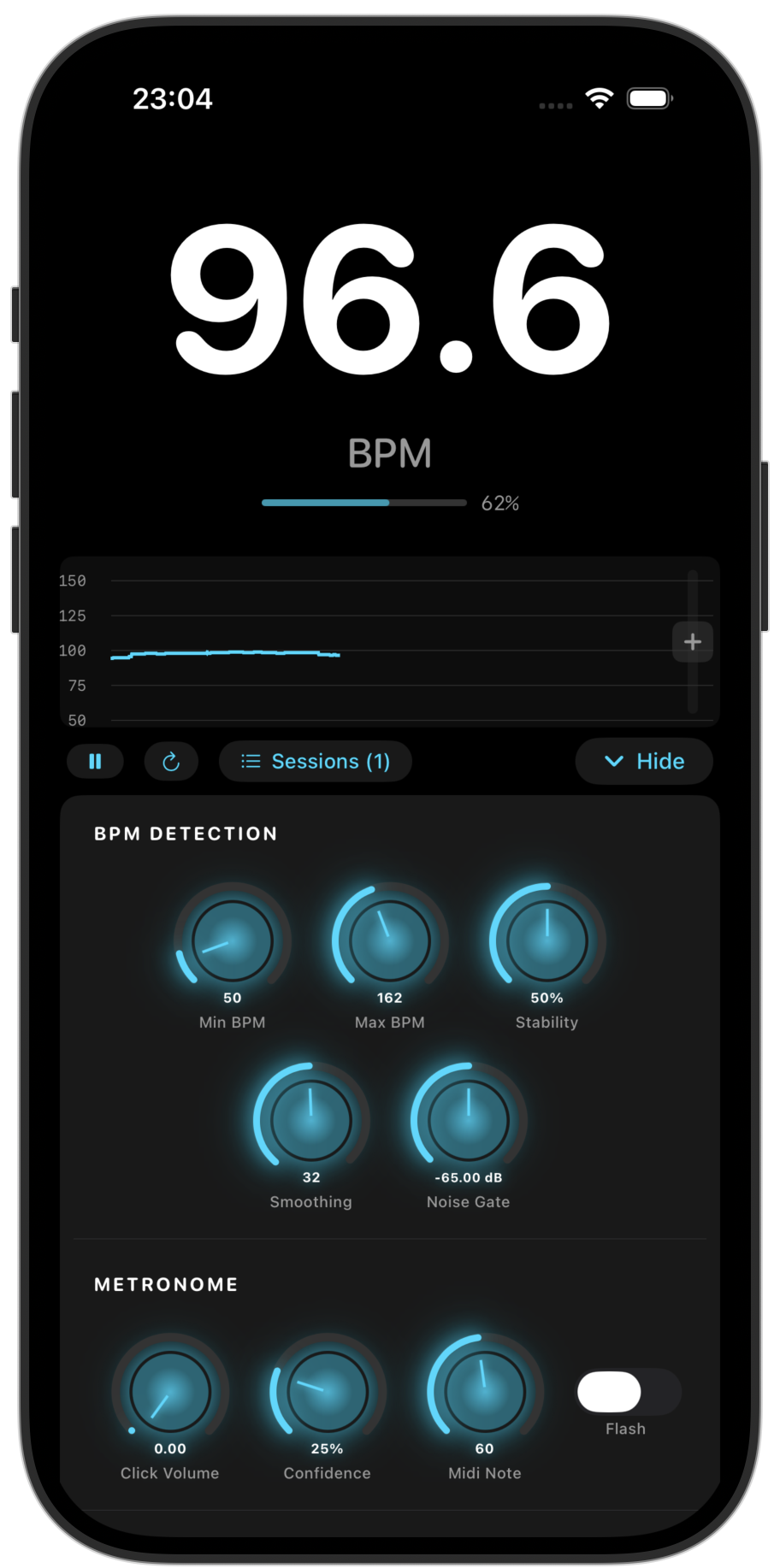
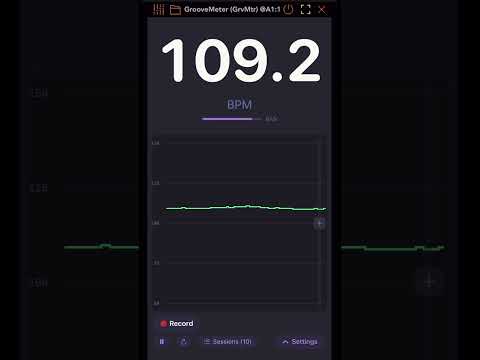
- BPM Display: Large readout of current tempo.
- BPM History Graph: Scrolling timeline of BPM values.
- Toolbar: Pause, Reset, Record, Sessions, and Settings.
3. BPM Display
- Shows the smoothed BPM in real time.
- A confidence bar indicates detection certainty.
- When no tempo is detected, the display shows ---.
- When Tap Tempo is active, the display shows the tap value and TAP TEMPO label.
4. BPM History Graph
- Plots BPM over a rolling window of 10 to 120 seconds.
- The Y-axis spans your Min BPM to Max BPM range.
- Grid lines provide tempo reference points.
- You can drag the target handle to set a Target BPM.
- Handle color indicates accuracy: green, yellow or orange, and red.
- Tap the graph to use it as a tap tempo surface.
5. Tap Tempo and Target BPM
- Tap two or more times to calculate tempo.
- The app averages the last 8 tap intervals.
- Tap tempo resets after 2 seconds of inactivity.
- Set a Target BPM from the graph and drag the handle to adjust it.
- Drag the handle off the graph to remove the target.
6. Recording a Session
- Tap Record to start logging.
- Play normally while BPM is captured every second.
- Tap Stop to end the session.
Note: Recording stores mono audio and BPM timeline data locally.
7. Reviewing a Session
- Scrub the playhead to jump to any time.
- BPM updates at the current playhead position.
- Use Play, Pause, and Rewind controls for navigation.
- The median BPM badge shows overall session tempo.
8. Session Browser and Export
- Each session shows date, duration, median BPM, min and max BPM, and stability percentage.
- Export creates a ZIP with audio recording and a PDF practice report.
9. Settings
BPM Detection settings include Min BPM, Max BPM, Stability, Smoothing, and Noise Gate.
Audio settings include Output Gain.
Display settings include Graph Time Window.
Appearance themes include Dark, Light, Dracula, and Gruvbox.
10. Metronome and Toolbar Controls
Metronome options include Click Volume, Confidence, MIDI Note, and Flash.
Toolbar buttons include Pause, Reset, Record, Sessions, and Settings.
11. Demo Mode and Purchasing
- In demo mode, the app alternates between active and idle periods.
- Tap Purchase during demo idle.
- Choose Purchase, Restore Purchase, or Continue Demo.
- After purchase, the demo cycle is removed.
Purchases are handled through Apple In-App Purchase.
Privacy policy
GrooveMeter does not collect any personal data.